
Role
UX/UI Designer
1 Month
It’s stressful preparing for meetings sometimes, but you can easily prepare using an internal AI tool to streamline your notes, meetings, and scheduling with generated summaries and preparation tools. First, I used Claude to organize a design specification document based on a requirement outline I created. Then I had Claude generate a UI kit that I plugged into Figma Make to create a prototype that is desktop and mobile responsive.
Note:
Not fully functional.


CONTEXT
What inspired my project?
While I was working on multiple projects, I was frustrated about the lack of a single system to keep track of all my tasks. I was using at least 3-4 different apps to keep up with various projects and I thought it would be easier if everything could be in one place. Thus, I decided to explore the idea of creating a tool that could help me streamline all my tasks as well as utilize AI tools to assist me with nonessential management tools to help me.
CHALLENGES
What are the User Needs?
Determining core task and management tools - In order design a functional app, I need to understand what the most common issues users face in order to determine what types of features to include in the product.
How AI can be used to help with workload management - While it can’t replace everything, I need to understand what AI can most likely help with to help users reduce their workload so they can focus on more prominent tasks.
Building an optimized mobile app version - While a desktop version works well for an on-site office location, users mostly use their mobile devices and can actively check their tasks on their phone when away from their desk. It can also help them manage their tasks without having to be confined to a desktop setup for management tasks.
CHALLENGE
Design a desktop/mobile optimized task management tool using AI tools that can help streamline workload managements and tasks.
DESIGN DECISIONS
The Essential Design Elements.

Dashboard Core Features.
Within the dashboard, there are essential features to help make the UI feel more intuitive for all user levels. These features include: a dashboard with a summarized breakdown of the current day’s event and tasks, notifications, the AI agent, and the different page tabs to switch between the different functions. All these features will help users easily navigate between their tasks while also getting an overview of ongoing tasks, and future ones. It also allows quick access to the AI agent that helps streamline their task management.
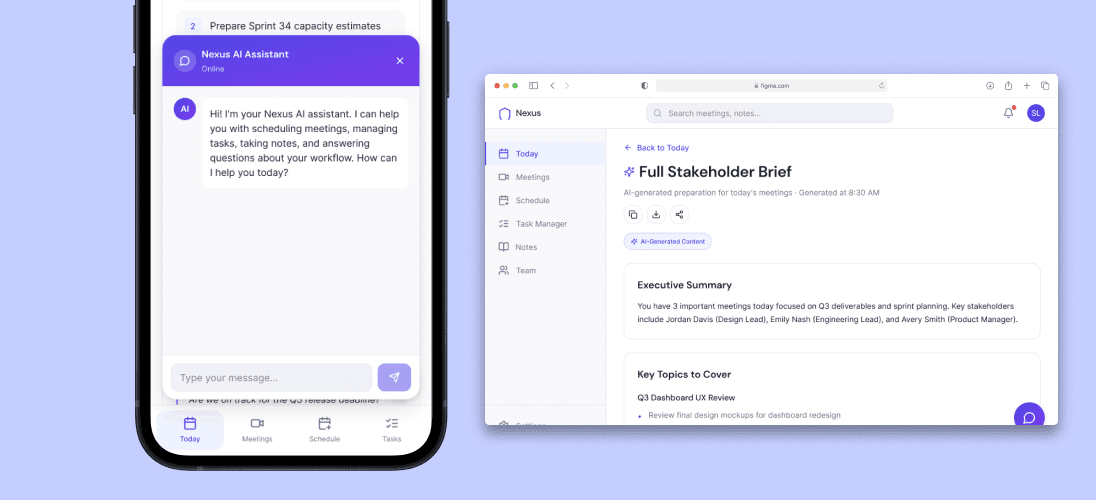
AI Assistant.
The AI assistant has a couple of functions that assist users. It can help give quick meeting summaries for meetings so users can quickly get a refresh of important points, so meetings can stay on track. It also can automatically help users create tasks, set up meetings, and summarize notes so users can focus on other tasks without having to spend too much time with the more time-consuming tasks.

Web / Mobile Optimization.
So users can easily access their tasks directly on their phones, I made sure the UI could easily translate into a mobile optimized format. Users are most likely to look at their phones and they stay on track without having to wait to access a desktop. Users can also easily from their phones right away if there are any last minute changes or updates with mobile notifications.
THANK YOU FOR READING MY SHOWCASE!
Final Notes
As I used AI tools Claude and Figma Make together, I’ve discovered there are various things I need to consider when using them. Specifically, how I create the prompts and experimenting with how to use them together efficiently since it took me a bit of trial and error to create wireframes that matched my design intent. While the results were good, I feel I have a better understanding now of how to use them these tools in the future when it comes to designing quickly and efficiently.